
Homebrew in the app
Make your own gear, skills, spells, buffs, races and classes with the forms, and share a pack with your table.
Homebrew is content your table writes itself: a ring that does something unreasonable, a spell that sets the wrong thing on fire, a race that nobody has to be. Crawler Vault lets you write it without leaving the app, with forms for the common things and a text view for everything else.
If you would rather write homebrew in a text editor, see Homebrew by hand. The two work on the same files, so you can mix them freely.
How it fits together
- An entry is one piece of content: one ring, one spell, one race.
- A pack is a collection of entries, with a name and a description. It is your own compendium.
- Packs live in the Homebrew tab. An entry shows up in the Compendium, and in every crawler’s pickers, as long as its pack is switched on.
Crawlers keep their own copy of whatever they pick up. That means you can edit, move, switch off or delete a pack and nobody’s crawler breaks. The only thing that changes is whether the crawler is told about later edits.
Making a pack
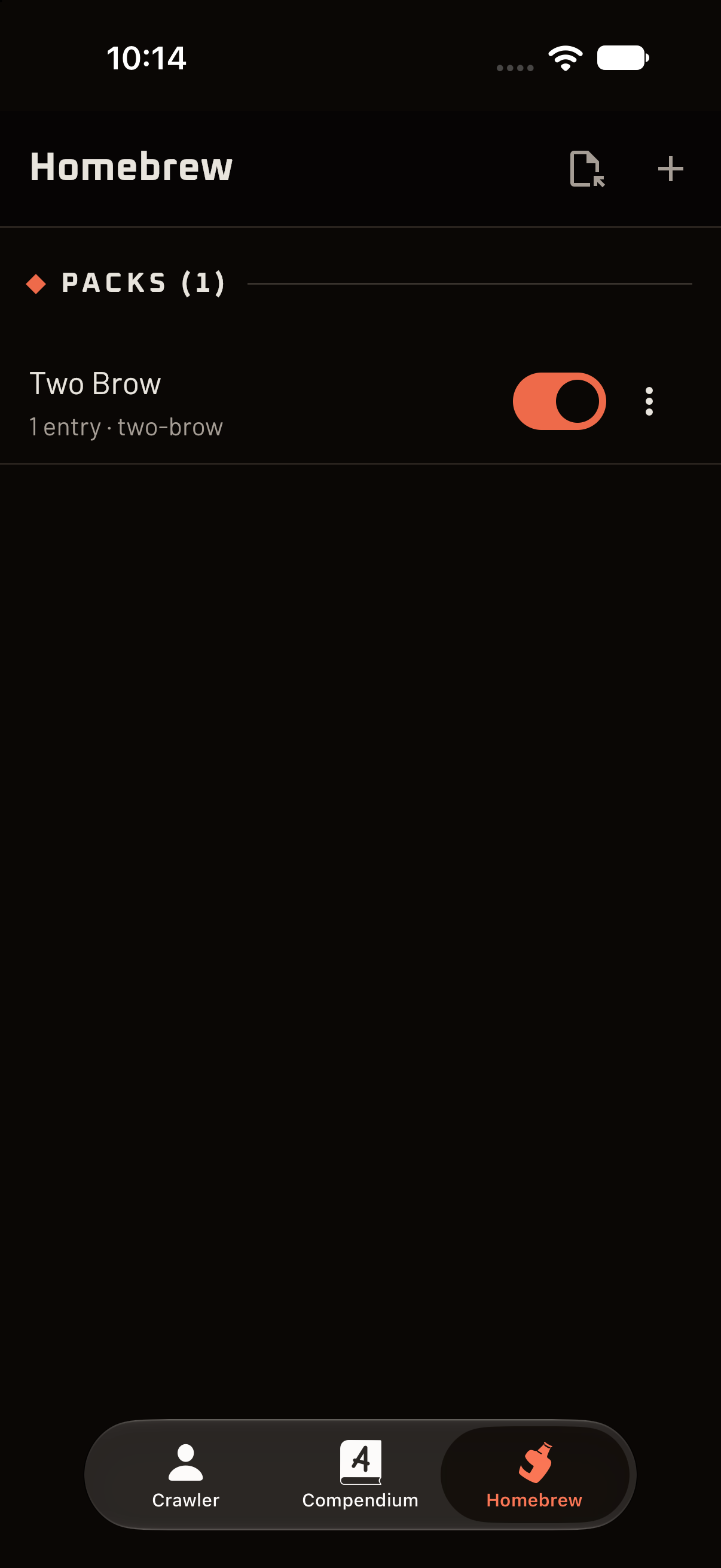
- Open the Homebrew tab. It says “A pack is your own compendium: the gear, skills and spells your table plays with.”
- Tap + (New pack), type a Name and tap Make.
Each pack gets a short permanent identifier made from its name, so “Dave’s Big Bag of Boom” becomes
daves-big-bag-of-boom. It is half of every reference the pack publishes, so it never changes, even
if you rename the pack. You will see it under the pack’s name.
Tell people about it
Open a pack’s ⋮ menu and choose Edit details… to fill in:
- Name, Authors and Description.
- Source, where the ideas came from.
- Licence and Copyright, what anyone else may do with the pack once you hand it on.
None of this changes how the pack plays. It is for the people you share it with.
Switch a pack on or off
The switch beside each pack decides whether its content is available. Switching a pack off hides its entries from the Compendium and the pickers, without touching anything a crawler already has.
Adding entries
Open a pack and tap + (New entry). The menu offers:
| Choose | For |
|---|---|
| Gear | Rings, armor, weapons, ammunition, anything you carry or wear. |
| Skill | Attack skills, spells and utility skills, all on one form. |
| Buff or debuff | Anything that is happening to a crawler for a while. |
| Race | A race, built from Build Points. |
| Class | A class, built from Build Points. |
| Text | Everything the forms cannot say. See Writing an entry as text. |
Give an entry a name and fill in what you want. Anything left blank is simply left out. Save writes it into the pack, and it is available right away. Tap an entry later to change it, or use its ⋮ menu: Edit as text…, Move to… and Delete….
As you type, the form points out anything that is wrong with what you have written. A form you have just opened is not “wrong” for being empty, so it saves its complaints about missing names for when you press Save.
Start from something that exists
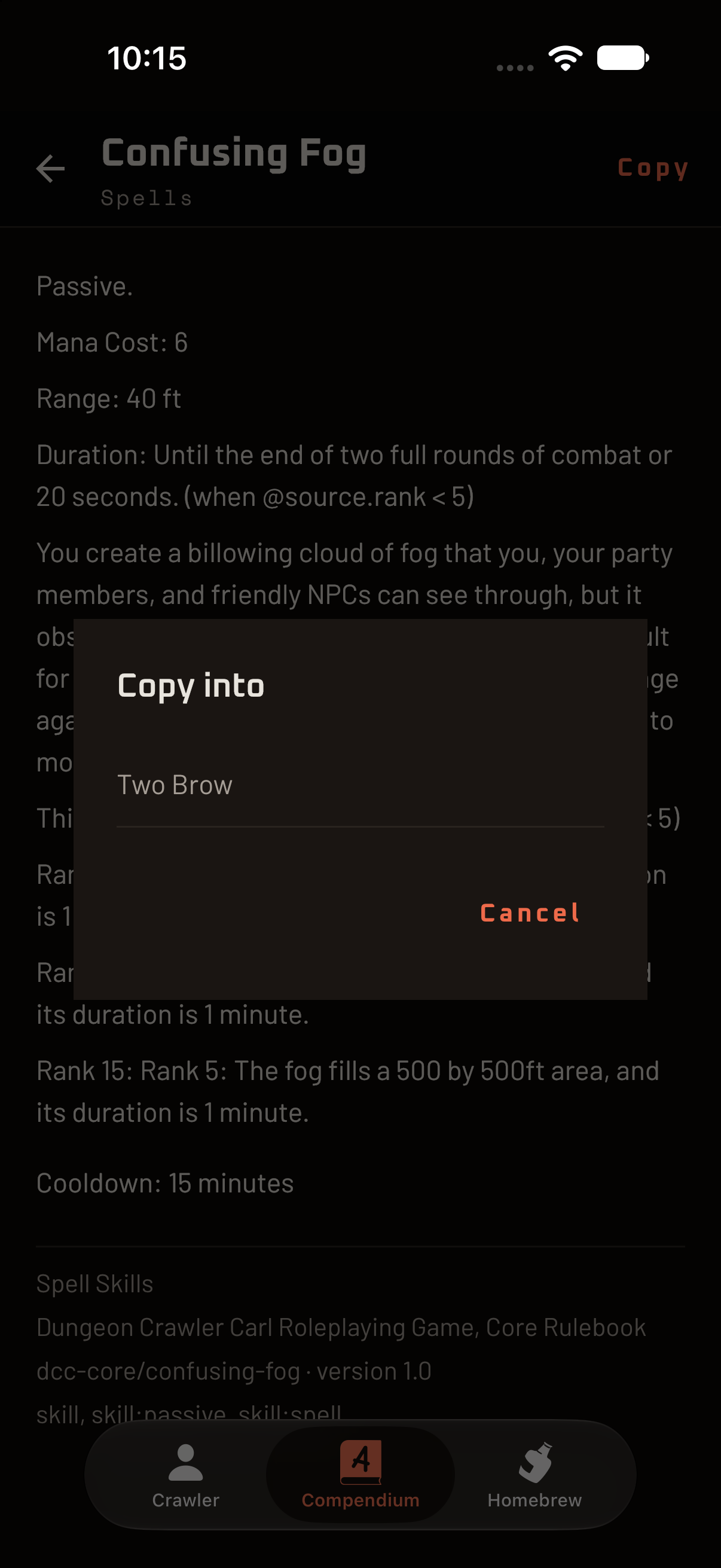
Most homebrew starts as an official thing with one small change. Open the Compendium, tap the entry you want, and tap Copy. Pick a pack under “Copy into”, and an editable copy lands there. It is the quickest way to learn how an entry is put together.
Gear
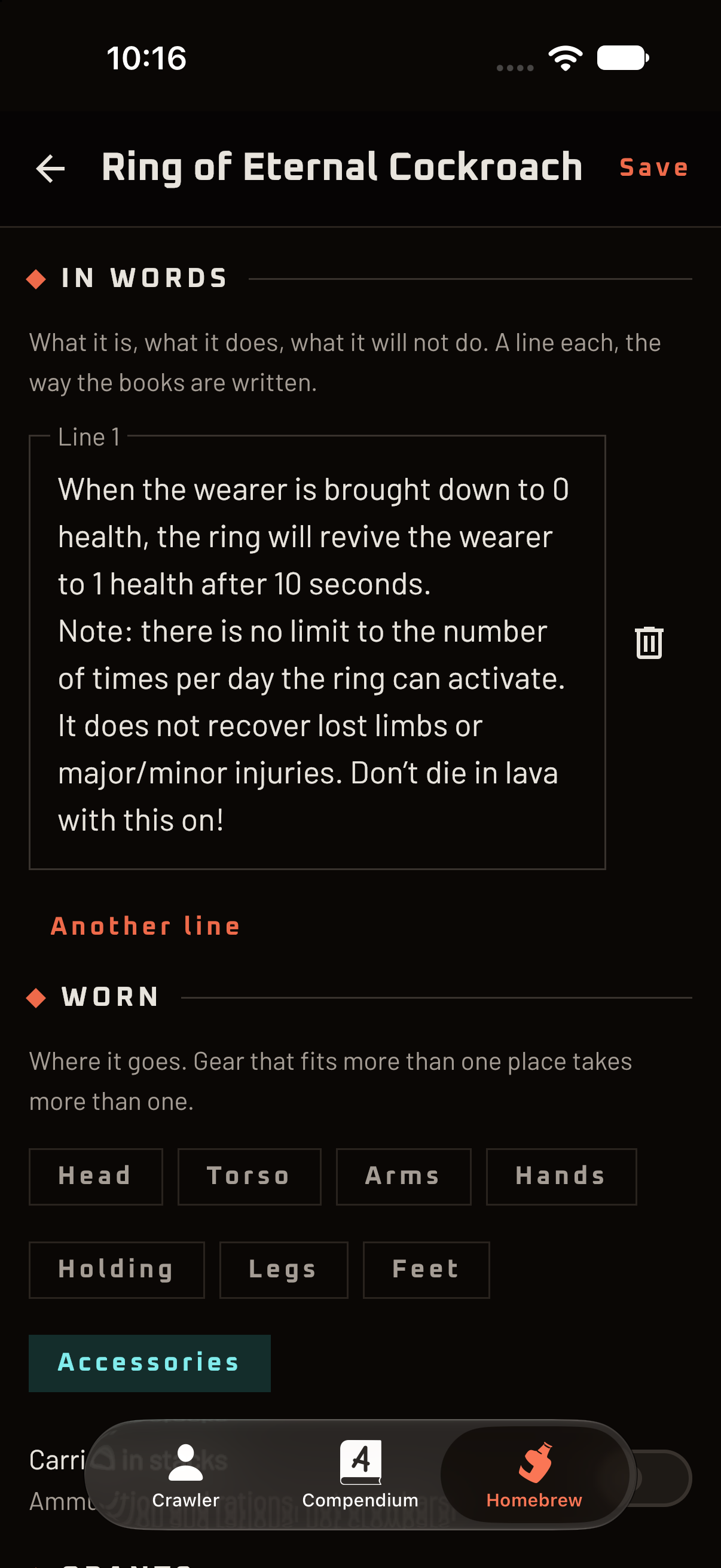
- Name and, below it, lines describing the item in words, the way the books do.
- Worn is where it goes: head, torso, arms, hands, holding, legs, feet or accessories. Gear that fits more than one place takes more than one chip.
- Carried in stacks is for ammunition and rations, not crowbars. A stackable item has a quantity.
- Grants is what it hands its wielder while it is worn. A weapon works this way: the damage belongs to a skill, and the weapon grants you the skill, at a Rank you choose.
- Defence has Armor (what the plate is worth) and Damage reduction (soaks a hit whatever you are wearing). Both add to the same total on the sheet.
- Damage types lets it Affect a damage type: the wearer Resists it, is Immune to it, or is Vulnerable to it.
- While worn adds a bonus to any stat while the item is equipped.
Everything an item does only counts while it is equipped. A ring in a pocket does nothing.
Skills and spells
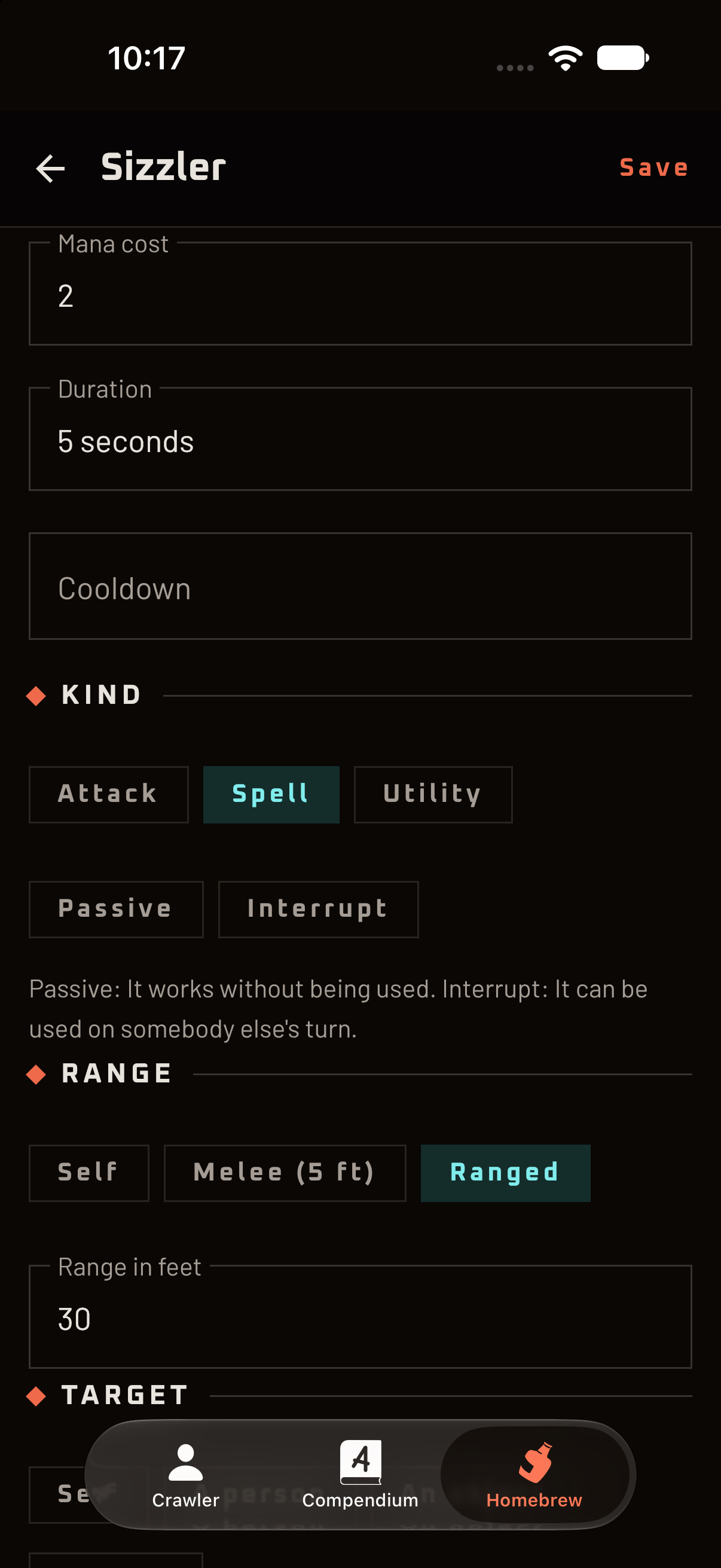
One form covers attacks, spells and utility skills.
- Kind is Attack, Spell or Utility. A spell also asks for Mana cost, Duration and Cooldown.
- Two traits can go with any kind: Passive (it works without being used) and Interrupt (it can be used on someone else’s turn). A skill can be both.
- Rolled with is the stat the check is made against. Opposed and Opposed by say who rolls against you.
- Damage: switch on This does damage, then choose the dice, the damage type (Of what) and which stat modifier is added. This is not always the stat the skill is rolled with: a shuriken is thrown with Dexterity and hurts with Strength.
- As it ranks up is what each rank adds: “at rank 5, +1d6”, and so on.
- Range and Target say how far it reaches and what it is aimed at.
- In words is the description, a line each, the way the books are written. A line can wait for a rank with From rank, so “Rank 5: also sets your hat on fire” only shows up at rank 5.
- Other tags holds anything the fields do not ask about.
Buffs and debuffs
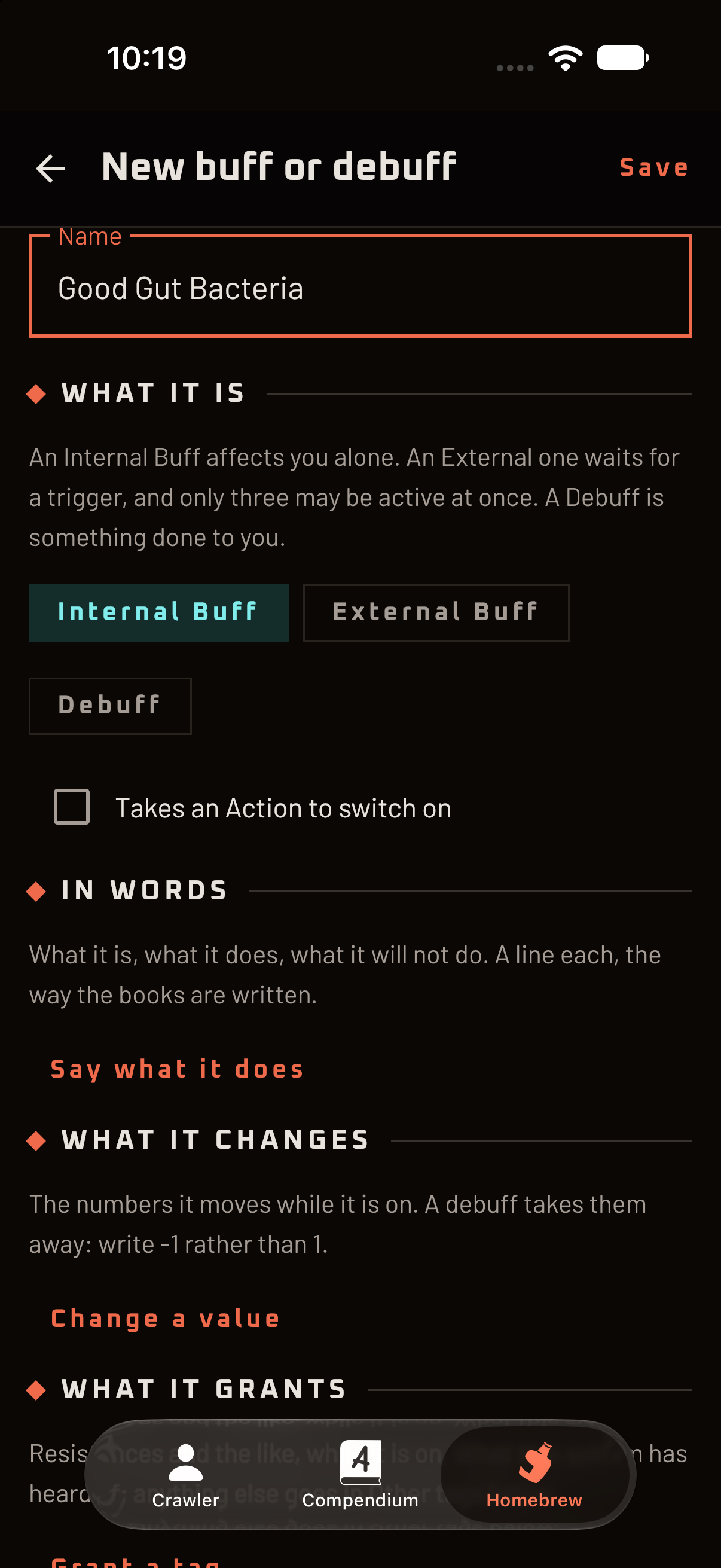
- What it is chooses Internal Buff (affects only you), External Buff (waits for a trigger, and only three may be active at once) or Debuff (something done to you). A debuff can also be Stackable, and anything can be marked Takes an Action to switch on.
- What it changes lists the numbers it moves while it is on. Use Change a value, pick the stat or number, and enter how much. A debuff takes numbers away, so write −1 rather than 1.
- What it grants adds things like resistances while it is on.
- How long takes Duration and Cooldown the way you would say them aloud. Something like “3 rounds” is counted down for you; anything else, like “until you change your socks”, is kept as words.
A line at the bottom, Written elsewhere, lists any rules the form has no fields for, such as ones you wrote as text. They are kept exactly as they are.
Races and classes
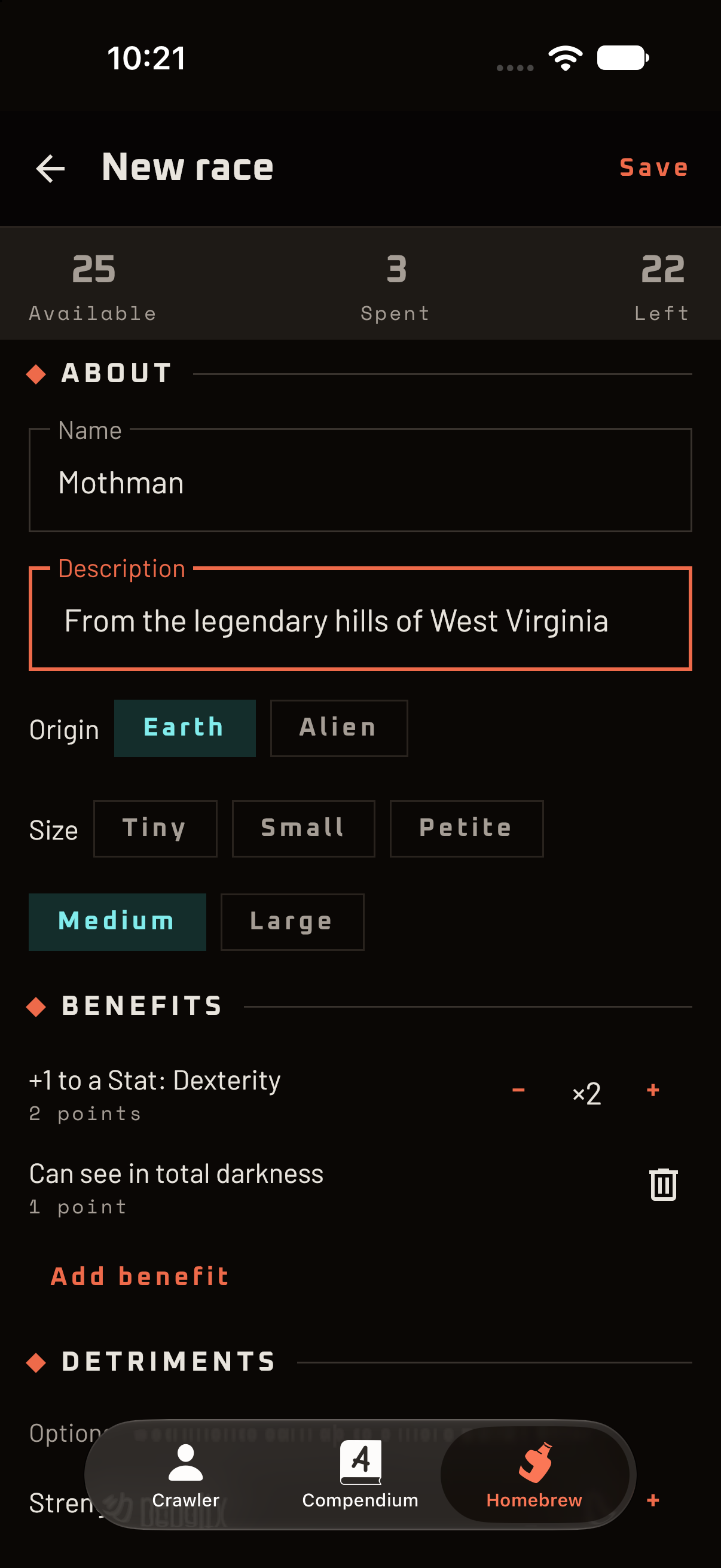
Races and classes are built from Build Points, the way the rulebook does it: 25 for a race and 30 for a class. You spend points on benefits and can earn up to 5 more by taking detriments.
- About: the Name, a Description, an Origin of Earth or Alien and, for a class, its Class types. A race also picks a Size.
- Benefits: tap Add benefit to pick from a menu grouped by what each tier costs, or choose Custom… to invent your own with its own name and tier.
- Detriments (optional): Add detriment and Add skill penalty earn points back.
The counters at the top, Available, Spent and Left, keep the score. If you go over budget, leave points unspent or put too much into passive skills, the app says so when you save, and lets you Save anyway. It is your table.
Once saved, your race or class appears in the picker on the third floor next to the official ones.
Checking a pack
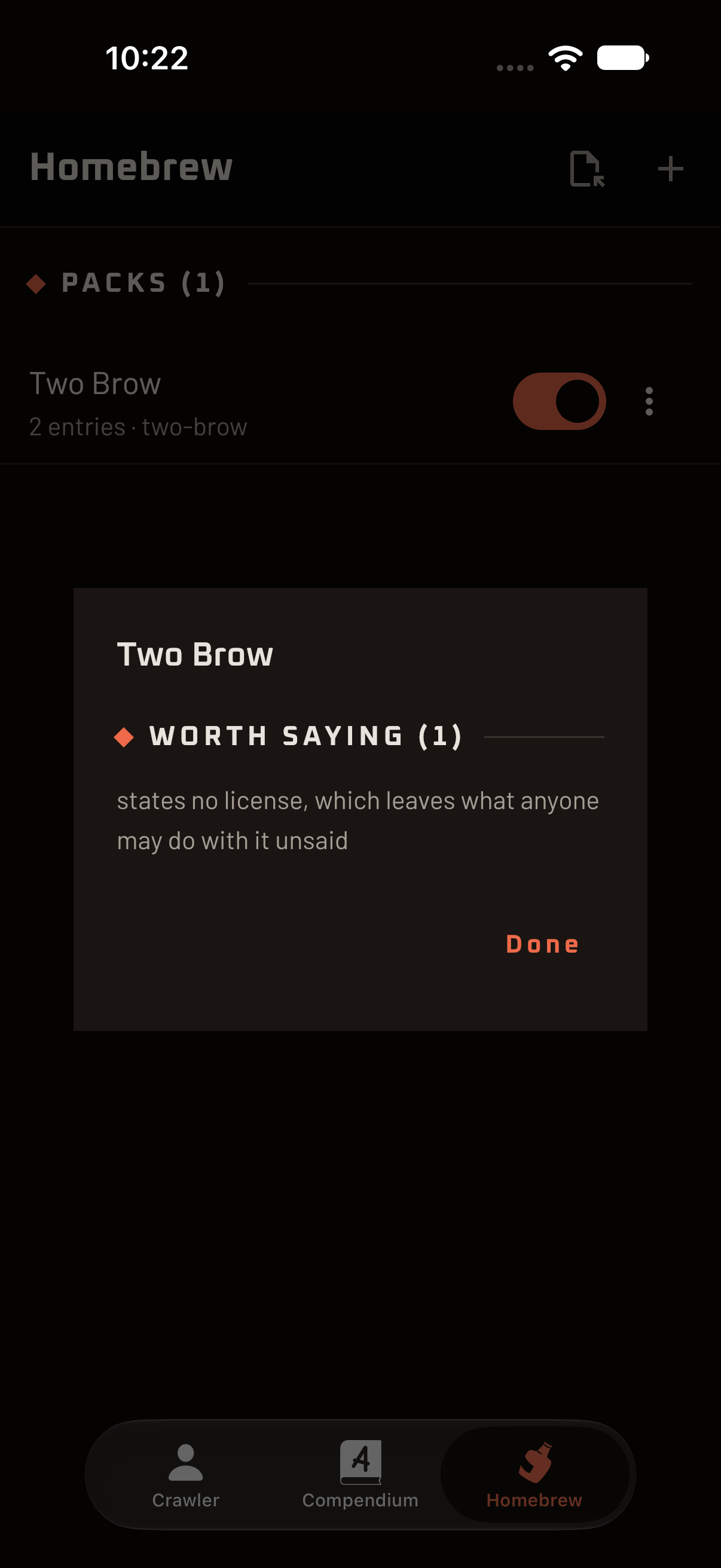
Open a pack’s ⋮ menu and choose Check…. It reads the whole pack and reports in two lists:
- Problems: content that cannot do what it says. A bonus aimed at a stat that does not exist, a tag the system has never heard of, or a reference to something missing. These are bugs.
- Worth saying: a pack that works but is missing something the next person would want, such as who wrote it or what they may do with it.
A clean pack says: “Nothing to report.”
Writing an entry as text
Sometimes the forms do not have a box for what you want. Charges on an item, a tag you invented, a rule built from two conditions. For those, the Text entry type (or Edit as text… on an existing entry) opens the entry as JSON: the Id at the top and the Document below it.
Whatever the forms do not understand is kept exactly as written, and what you save through the text view goes through the same checks as a form. The format is described in Homebrew by hand.
Moving, copying and deleting
- Move to… (from an entry’s ⋮ menu) moves it to another pack. This publishes it under a new reference, so crawlers already carrying the old one keep playing from their own copy but stop being told about changes to it. The dialog tells you so.
- Delete… removes an entry or, from a pack’s menu, the whole pack. Both ask first. Deleting a pack tells you how many entries go with it, and it cannot be undone: export it first if you might want it back.
Sharing a pack
A pack is a single file ending in .comp.json, which is how you swap one with your table, or back one up.
To send one: open a pack’s ⋮ menu and choose Export… to save the file, or Share… to hand it straight to another app (depending on your device). Anyone with Crawler Vault can import it.
To receive one: on the Homebrew tab, tap the Import a pack icon and choose the file. If you already have a pack with the same identifier, you are asked what to do:
- Replace overwrites the pack you have with the one in the file. Use this for a newer version of the same pack.
- Keep both brings the new one in under a different identifier and leaves the old one alone, for when someone else’s pack picked the same name as yours.
- Cancel changes nothing.
Importing does not check every entry inside. If something looks off, run Check… on the pack afterwards, and edit anything that needs it. Each entry is editable once it is in.
Using homebrew at the table
Once a pack is switched on, its content shows up wherever the official content does:
- Gear in the Gear tab’s Add list.
- Skills and spells under Add skill.
- Buffs and debuffs under Add buff and Add debuff.
- Races and classes in the pickers on the third floor.
If you switch a pack off while a crawler is carrying something from it, nothing breaks. The crawler keeps what it has, and the crawler’s Updates list says “From a pack you switched off”, naming what it is still carrying: switched off, not missing.